Change Your Password
Change your password to maintain account security and prevent unauthorized access. All authenticated users (except federated/SSO users) can change their password.
Change Password
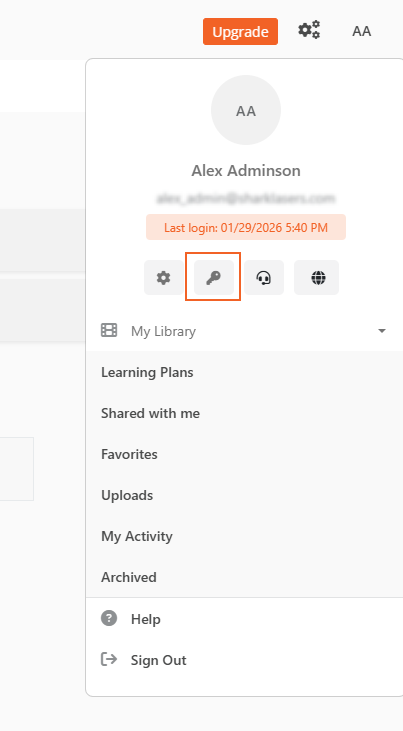
- From the Portal's Homepage, select the User icon in the top right corner.
- In the panel that opens, do one of the following:
- Select the Key icon to go directly to the Change Password screen.
- Select the Manage Profile icon, then select Change Password from the left menu.
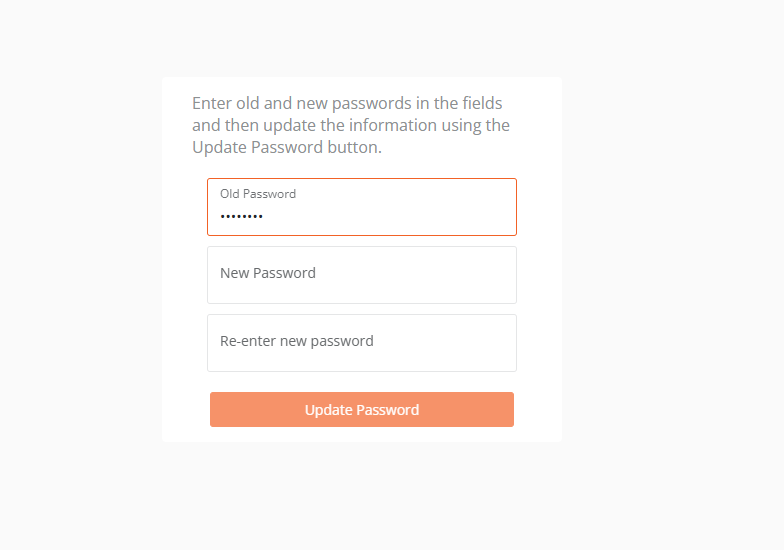
- On the Change Password screen:
- Enter your Old Password.
- Enter your New Password.
- Re-enter the new password to confirm.
- Select Update Password.
Your password is now updated.
NOTE: Your new password must conform to the portal's password policy (for example, minimum length, special characters, etc.).